Vim for Beginners

Introduction
So, you got yourself a shiny new (or old) ThinkPad to put Linux on to flex on r/unixporn and r/thinkpad. You throw out any remaining masculinity, don your cutest thigh-highs and boot into an Arch ISO. Then reality hits you in the face — you don’t have internet to save your ass by sudo pacman -S nano-ing your way out of editing the locale.conf. Or maybe you fell for the HHKB hype — the allure of a decade-old Japanese keyboard with worn rubber domes, topre goodness you overpaid for on eBay, and no dedicated arrow keys.
Alternatively, like me, you might attempt to ditch your overpriced, overengineered mouse for no logical reason and write code the GNU way. Regardless of the reason, you’re here to get your hands dirty and learn Vim.
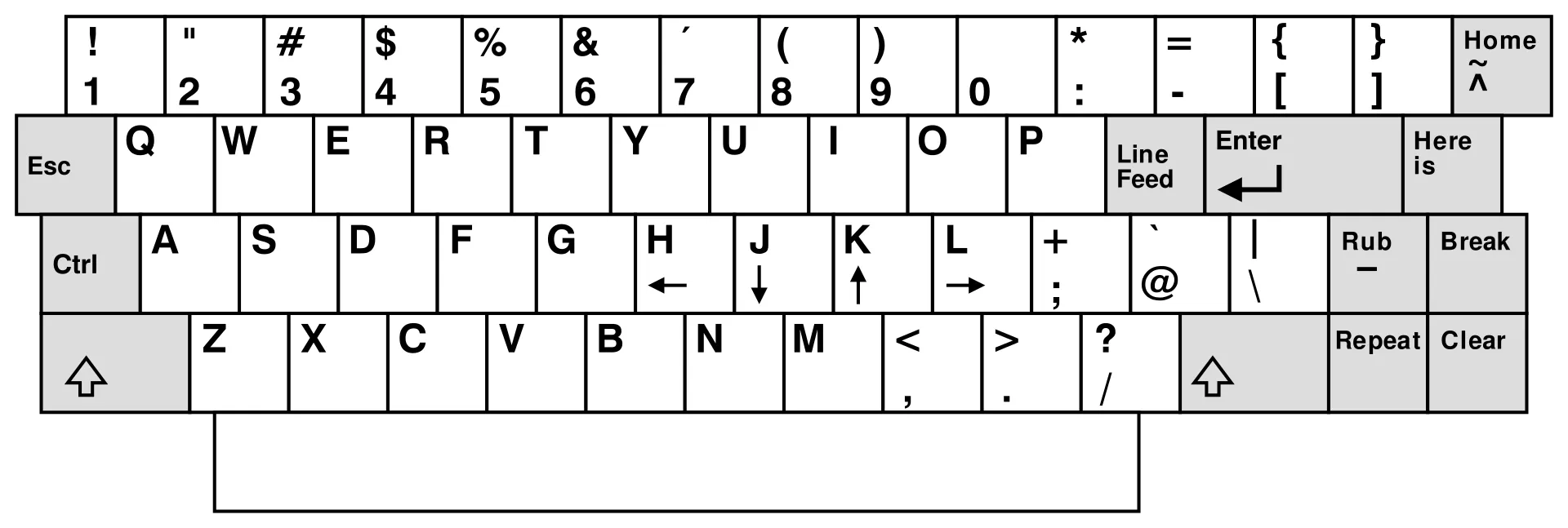
Contrary to what most Vim-tards claim, Vim (or Vi IMproved) didn’t adopt its strange motion keybindings just so the r/linux neckbeards (jk, i love them) could keep their hands on the home row for “efficiency.” Instead, these bindings originated from the ADM-3A keyboard layout, where the HJKL keys were literally the arrow keys. Here’s what that keyboard looked like (yes, there is a “rub” key…):
But hey, whatever helps r/linux and the RTFM folks sleep at night.
Let’s dive in.
Setting up Vim in IDE
There exists a Vim plugin for any and every IDE. I will be using Cursor because it’s literally an autocomplete for writing shitty scripts I write for my system.
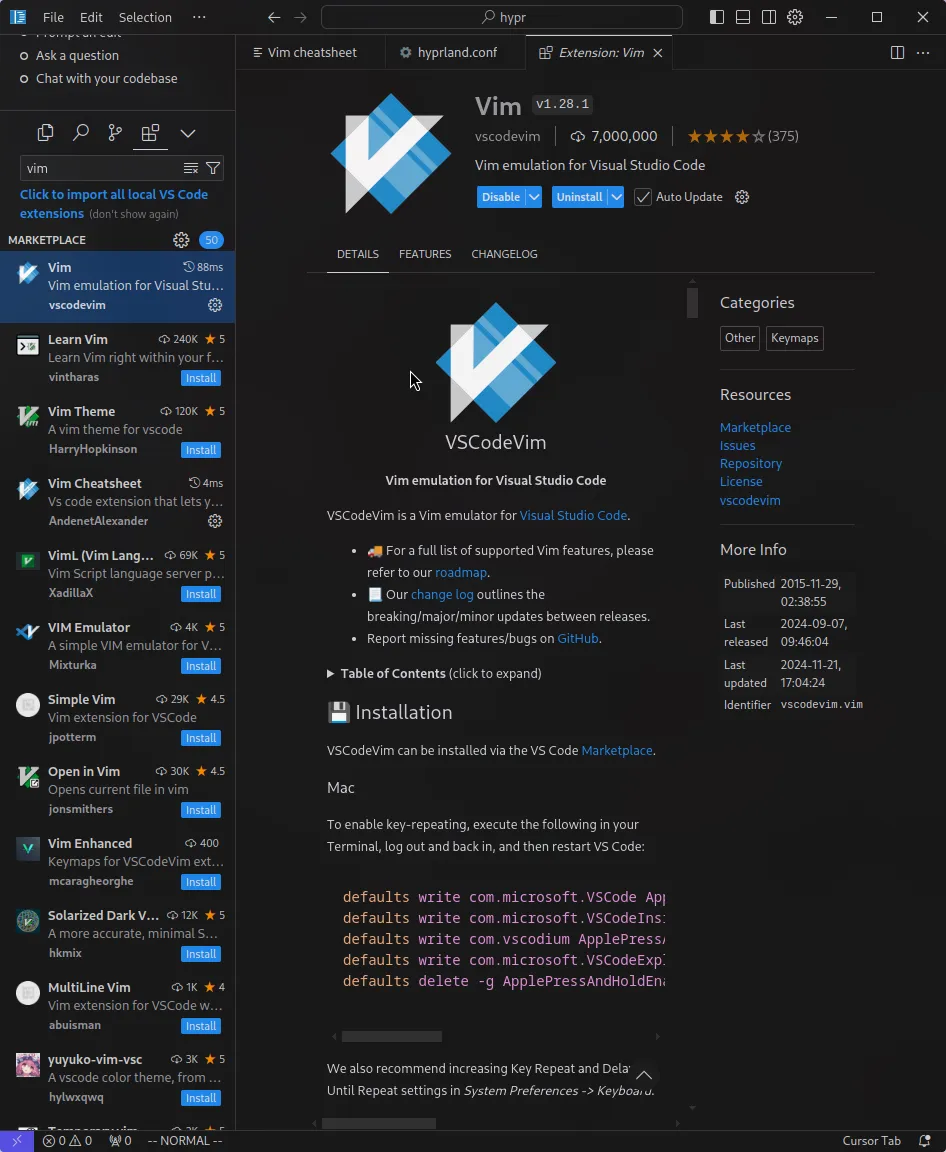
Just download the right extension on your IDE.
Type in set number to have numbered lines, although this might be the default behavior of the IDE. The linux bourgeois (kinda ironic. idk why I said that) use relative numbering. Use the command set relativenumber to have relative numbering. This helps you do some stuff that we talk about later.
Basic Features
Vim Motions
Vim has three primary modes:
- NORMAL Mode: For navigating and executing commands.
- INSERT Mode: For writing or editing text.
- VISUAL Mode: For selecting and manipulating text.
The NORMAL mode is where you type in your fancy Vim commands. The INSERT mode lets you insert text into your files. The VISUAL mode lets you visually select and manipulate text.
In NORMAL mode, use h, j, k, and l to move the cursor:
h(left),j(down),k(up), andl(right).- Preface these commands with a number to repeat them multiple times. For example:
5j
Word and Line Navigation
w: Jump to the beginning of the next word.e: Jump to the end of the current word.b: Jump to the beginning of the current word.
For lines:
0: Jump to the beginning of the line.^: Jump to the first non-empty character in the line.$: Jump to the end of the line.
Advanced Navigation
gg: Jump to the beginning of the file.G: Jump to the end of the file.f<char>: Jump to the next occurrence of<char>.F<char>: Jump to the previous occurrence of<char>.%: Jump between matching brackets or parentheses.
To scroll:
Ctrl+d: Scroll down half a page.Ctrl+u: Scroll up half a page.Ctrl+f: Scroll forward one page.Ctrl+b: Scroll backward one page.
You might want to add funny ASCII art to the beginning of your config. To do this the Vim way, we use gg. To move to the end of the page, we use G (shift + G).
Editing Text
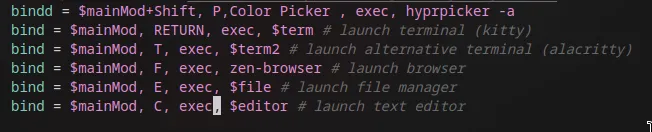
Take note of the cursor position
i: Insert before the cursor.a: Append after the cursor.A: Append at the end of the line.I: Insert at the beginning of the line.o: Open a new line below.O: Open a new line above.
Copy, Paste, and Undo
yy: Copy the current line.p: Paste the copied content.u: Undo the last change.Ctrl+r: Redo the undone change.
Deleting Text
d: Delete.dw: Delete the next word.diw: Delete the current word.dd: Delete the current line.d$: Delete everything from the cursor to the end of the line.dt<char>: Delete until the occurrence of<char>in current line.dip: Delete the current paragraph.
You will probably need the last one to quickly delete your yaoi fanfic at work.
Changing Text
c: Change (delete and enter INSERT mode).ciw: Change the current word.cc: Change the current line.
Use . (dot) to repeat the last change command.
Search and Replace
- Search by typing
/search_term. Pressnfor the next match orNfor the previous one. - Replace text with:
:s/search_term/replace_term/g - For entire file:
:%s/search_term/replace_term/g - For confirmation, use:
:%s/search_term/replace_term/gc
Intermediate Motions
Function Folds
Fold (minimize) a function in our editor, we use z,c (close). To unfold, use z,o (open).
To operate on all functions in the current file, we use z,M and z,R.
We can select some lines in VISUAL mode and shift them left or right using the < or > keys.
To add the same prefix to multiple lines, we select the lines using VISUAL BLOCK mode and then press the I key to add the word to multiple lines.
Macros
- Start recording:
qa(records into register a). - Perform your actions.
- Stop recording:
q. - Replay the macro:
@a. - Repeat on multiple lines:
15@a(executes the macro 15 times).
Folding
- Fold function using
zc - Unfold function using
zo - Fold all functions in file with
zM - Unfold all functions in file with
zR
Case Conversion
gUw: Make a word uppercase.guw: Make a word lowercase.
Bookmarks
Set a bookmark on a line with ma (bookmark a). Jump to it with `a.
Toggle between the last two locations with “.
Running External Commands
Running external commands can be done by using something like this:
:read !whoamiYou could also send a block of code, e.g. JSON, to a command and parse it.
{
  "firstname": "quiet",
  "lastname": "owo"
}
So now running !jq .firstname replaces the block of text with "quiet".
Conclusion
Congrats, now you can ramble on about how you code in Vim and act all holier-than-thou with your friends and solidify your virginity with :wq!.
I am still contemplating if this is actually worth the effort learning properly considering I have school and actual work. Lowkey miss unemployment.
Cheers!
quiet🌸